ZDNET Takeaways
- The GTA VI universe is full of magnificent landscapes that you can highlight using the settings on your TV.
- In-game picture and sound settings let you fine-tune your preferences even further.
- These menu tweaks can also improve the graphics of your other games.
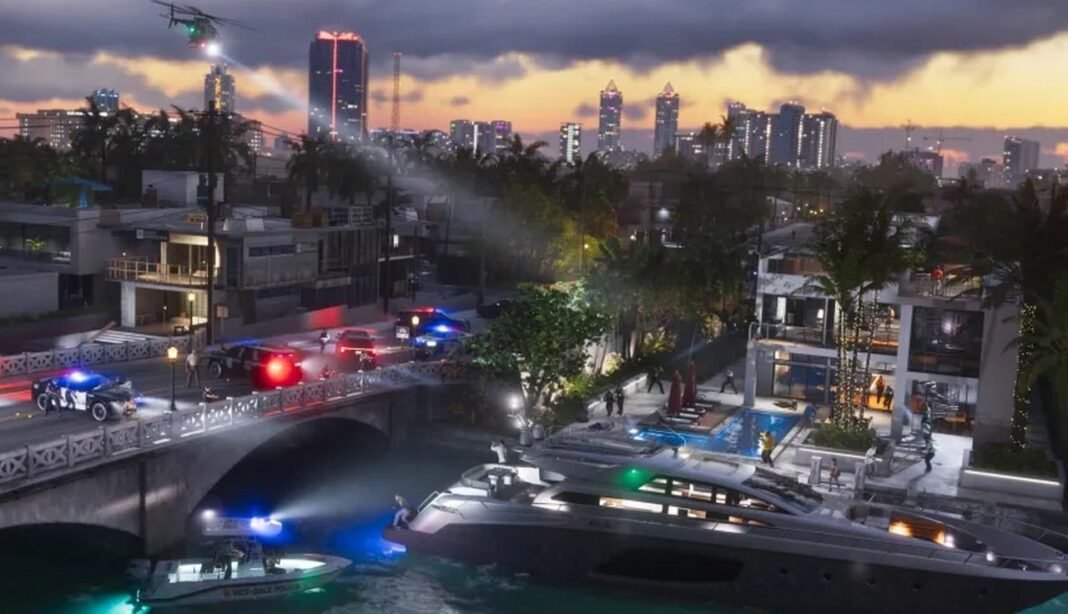
I never tire of GTA VI’s beautiful environments, and I still can’t believe the diversity of the map. From sunny beaches to misty swamps, the neon-lit streets of Vice City to the crystal blue waters surrounding Leonida, there’s plenty to enjoy if you want a break from the main story and side missions. And if you’re looking for a quick and easy way to maximize console graphics, a few tweaks will help you get the most out of your game.
Each TV manufacturer has its own setup menu and categories for organizing settings and options, but the basic steps are valid for all brands. To help you get started, I’ve put together a list of picture and sound settings to adjust while you play; Changing these settings while you’re paused in-game allows you to quickly readjust the sliders and buttons if you’re unhappy with what you see or hear.
The best TV settings for GTA 6
I own two versions of the Hisense U8, a 2022 model and a 2023 model, so I used them to test different audio and visual configurations to determine not only what provides pleasing visuals and audio, but also what takes full advantage of my TV’s console gaming support. And while my experience is specific to this brand, all TVs give you the tools to take almost complete control over your picture quality.
1. Enable HDR
Enabling HDR both in-game and on your TV helps improve contrast by creating deeper shadows and brighter highlights. This also allows your screen to display a wider range of colors for better accuracy. This sharper contrast brings out vibrant colors and details against busy backgrounds, like the mangroves of Grassrivers or the downtown streets of Vice City.
2. Explore your TV’s preset picture modes
Your TV’s different preset picture modes feature varying levels of color saturation and RGB balance, creating warmer or cooler tones depending on their calibration. Choosing a picture mode like “Filmmaker” or “Vivid” helps make colors look bright and vibrant, which can help offset the slightly washed out effect that Leonida’s sun can produce during a long gaming session. And if you find that the preset presents colors a little too saturated, you can perhaps explore the more advanced picture settings to manually adjust the saturation and temperature to achieve the look that you think best suits your needs. screen.
3. Adjust brightness and contrast
Brightness and contrast adjustments work in concert with HDR to help you clearly see what’s happening when playing during the game’s night cycle or in dimly lit indoor environments. When HDR is enabled, you should manually adjust the brightness and contrast levels of your TV and game to achieve a consistent look that you can reproduce every time you launch your game.
4. Turn off motion smoothing
Smoothing motion can help significantly reduce blur during fast-paced games, but it can also make your game blurry and overall unpleasant to watch because it inserts extra frames where there normally wouldn’t be any. It’s an ingenious trick that allows developers to “trick” your console into making it look like the game is running at a higher frame rate than it actually is, but personally I always turn this feature off because it looks really horrible (and it gives me motion sickness).
5. Adjust the white balance of your TV
The game takes players back to Vice City and expands the map to include most of the fictional state of Leonida, which serves as the model for the state of Florida. This subtropical setting is characterized by intense sunlight and many reflections that can completely obscure other colors and visual details. By manually adjusting your TV’s white balance, you can better control its color temperature and eliminate any chance of a blue or red cast that can affect color accuracy.
What about frame rate?
While GTA VI is absolutely stunning and runs incredibly smooth out of the box (so to speak), changing a few settings on your TV and enabling some in-game options allows you to take full advantage of your TV’s picture quality to achieve better color accuracy, sharper contrast, and more detail. Adjusting the white balance and color temperature helps keep colors vibrant and accurate, while turning on HDR and turning off motion smoothness helps deliver a sharper image with deep contrast.
Unfortunately, there’s no way to actually increase your frame rate on the console without physically changing it or messing with the game’s code, but the 30fps max on PS5 is good enough for now, and I fully expect that the PC version, regardless of its release date, will let you hit a framerate in the region of 120fps thanks to mods and performance optimization settings built into your console. PC.