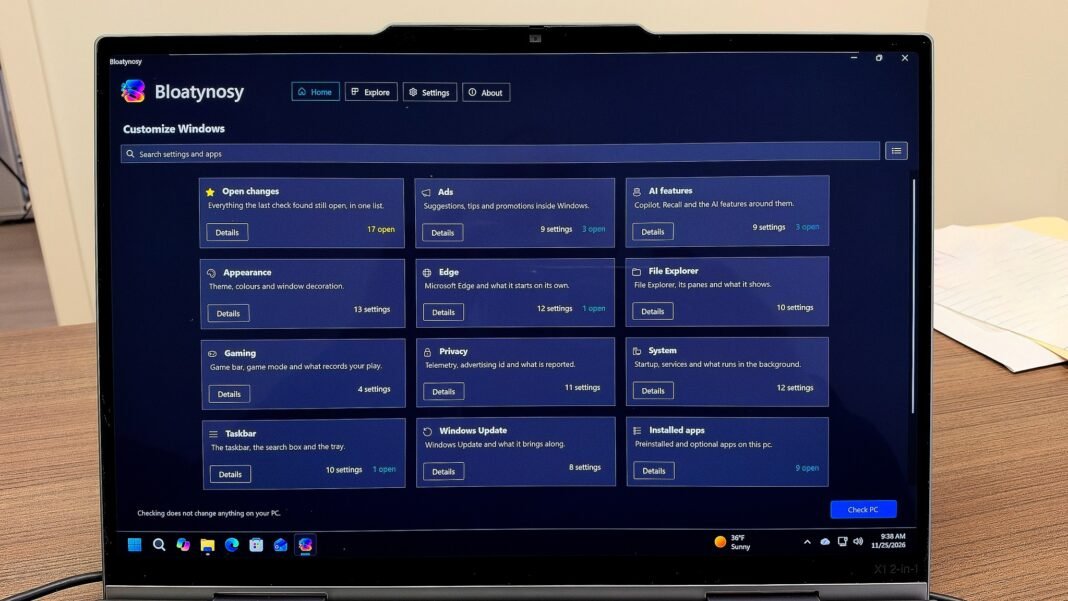
The Bloatynosy anti-bloatware utility, Ph. Lance Whitney/ZDNET.
Microsoft imposes two sources of inconvenience on Windows 11: AI and advertising. AI features include not only the Copilot app, but also AI in Notepad and Paint, Recall on Copilot+ PCs, as well as AI in Edge. As for advertisements, they generally come in the form of suggestions, advice and promotions intended to tout other Microsoft products and services.
You can try to ignore many of them, but they are still very intrusive. You can try to disable them manually, but this process can be complicated. Instead, I use a free third-party utility called Bloatynosy. This simple tool allows you to disable a whole series of nuisances and bloatware in Windows 11, in different categories.
One category is about AI, another is about ads, a third is about privacy, and a fourth is about installed apps. There are also categories for File Explorer, Taskbar, and Windows Update. You can explore each category to see which settings can be removed or disabled.
You can also run a scan of your PC to see what features and settings are installed and active on your system. Then you just have to select the items you want to eliminate, and the program will do it.
Now here’s how to use Bloatynosy to lighten up your Windows 11 PC.
How to declutter Windows 11 with Bloatynosy
1. Download and launch Bloatynosy
Bloatynosy is accessible via its GitHub page. Check the page for the latest information about the program, then click the version number button. On the next page, you can choose between two versions of Bloatynosy. One is a standard version, while the other includes a .NET 11 runtime from Microsoft to improve the appearance of the software. I advise you to opt for the .NET version.
Unzip the downloaded ZIP file. Browse through the created folders until you find the Bloatynosy.exe file. Right-click this file and run it as administrator to launch the program.
No installation is required, except for the .NET runtime if that component is not already installed. If Microsoft Defender’s Smart Screen feature attempts to prevent the app from opening, click the “More information” link and select the “Run anyway” button.

Screenshot by Lance Whitney/ZDNET
2. Run a scan of your PC
The Bloatynosy home screen displays all the categories corresponding to the different settings you might want to disable or delete.
But your first task should be to check your PC to see what unwanted items are installed on your system.
Click the button Check PC (for the moment, there is no French version) in the lower right corner to start the analysis.

Screenshot by Lance Whitney/ZDNET
3. View installed features and settings of your PC
Once the scan is complete, Bloatynosy presents you with all the settings that you can change or uninstall. In the AI section, you’ll find settings to disable Copilot in the taskbar, disable AI features in Edge, disable Microsoft Recall, disable AI features in Notepad and Paint, and remove Copilot completely. Under the “Ads” section, you’ll likely find options to opt out of lock screen ads, Start menu ads, personalized experiences, tips and suggestions, and personalized ads.
Other useful settings are available in other categories. You can align the Start button to the left, disable the prompt to set Edge as the default browser, disable the Edge sign-in and first-time experience (two settings I find particularly annoying), enable dark mode, reduce the diagnostic data Microsoft collects, and hide the Task View button on the taskbar.
Some settings are checked by default, but you can choose to check or uncheck them all, or simply manually check the ones that interest you. Once you confirm your choices, click Apply to implement them.

Screenshot by Lance Whitney/ZDNET
4. View proposed changes by category
Computer scan results do not display settings in any particular order. This is why you may prefer to view and process them by category.
Click the Home button to return to the home screen. Click the Details button for the category you want to explore.
You can then select or deselect settings specific to that category. Click the Apply button to validate these changes.

Screenshot by Lance Whitney/ZDNET
5. Show results
The screen will then indicate the number of parameters that have been modified based on your selections. It also lets you know if you need to restart File Explorer or Windows itself.
After restarting Windows, log in again and reopen the program.
Check the features and settings that you removed or disabled to make sure they are gone.

Screenshot by Lance Whitney/ZDNET
6. Restore Settings
What if you turn off a setting and want to turn it back on? No problem. Bloatynosy will take care of this for you.
In the program, restart the analysis of your PC, then return to the category in which settings were modified.
Changed settings will appear gray. Select the ones you want to reset, then click the restore button. These settings will then be restored to their previous values.

Screenshot by Lance Whitney/ZDNET
7. Explore other options
Bloatynosy has other options worth exploring.
Right-click a specific entry to get more details about it, change only that setting, select or deselect all settings, or tell the program to ignore that entry in the future.

Screenshot by Lance Whitney/ZDNET
8. Change Settings
Finally, you can adjust some software settings. Click the Settings button at the top of the screen.
There you can turn dark mode on or off, update the settings catalog, and enable AI-generated explanations. For the latter option, you then need to select an AI provider such as Grok, OpenAI or Anthropic.
You must then request and enter an API key. After that, right-clicking on an entry and asking for details allows you to get an AI-generated description of it.

Screenshot by Lance Whitney/ZDNET
Overall, Bloatynosy is very effective in ridding Windows of unnecessary software and other nuisances. This program is simple and user-friendly, and I highly recommend it.
Source: “ZDNet.com”